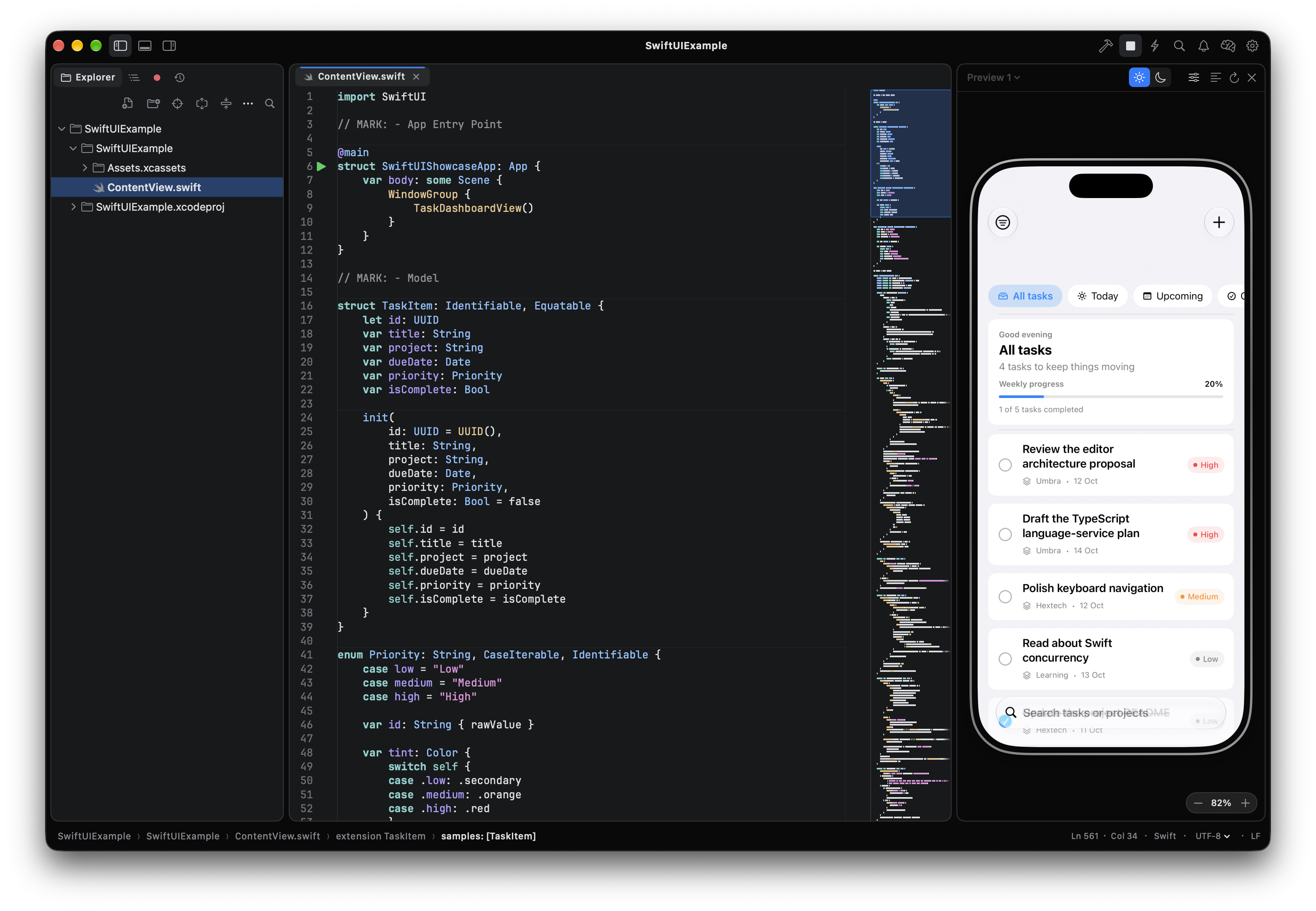
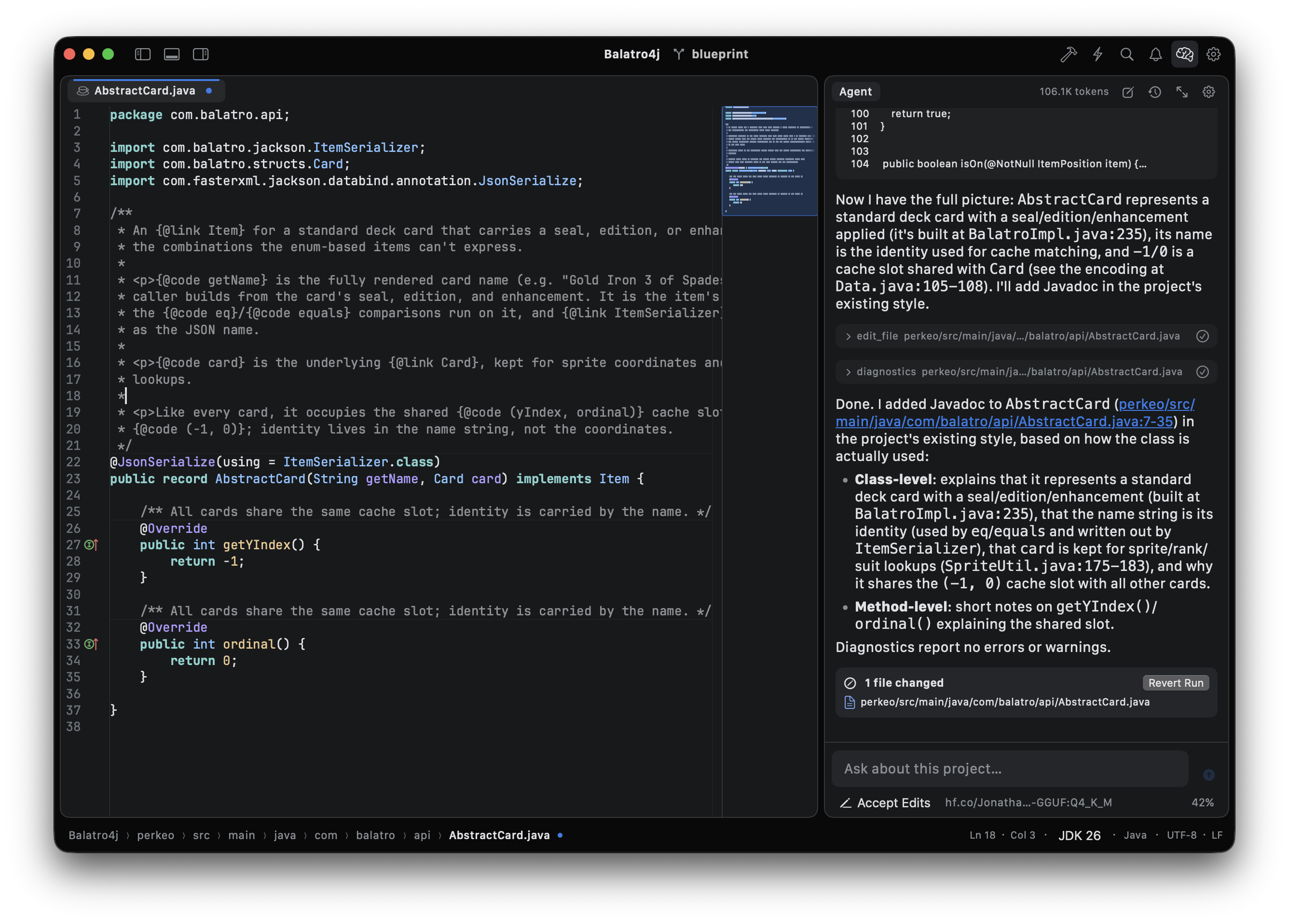
Umbra, the editor app
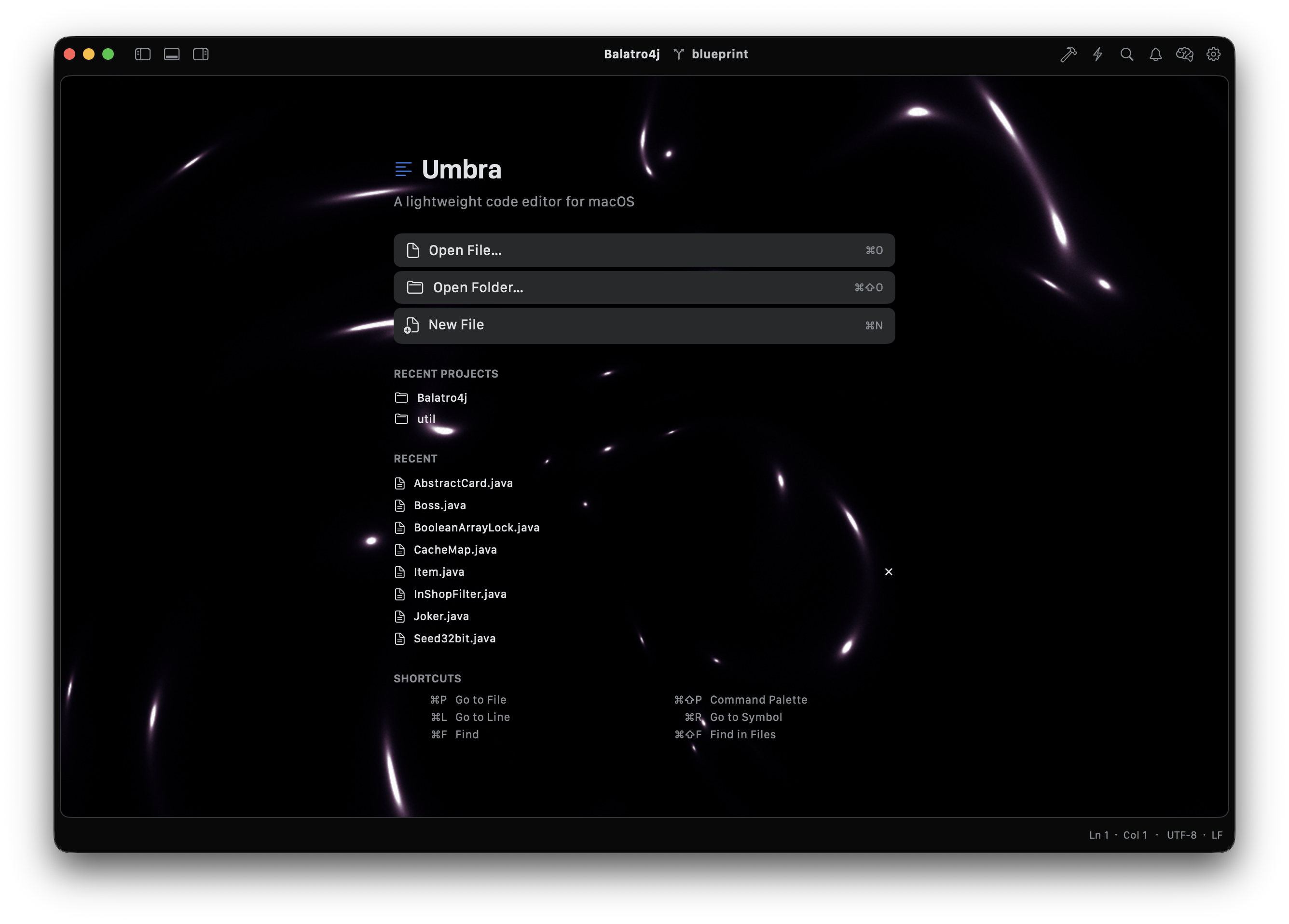
A Sublime Text-style editor for macOS: open a folder, edit fast, and stay in one window for
Java projects, API calls, docs, Git, and an AI coding agent. No Electron, no LSP server to
configure for Java.
Java and Gradle
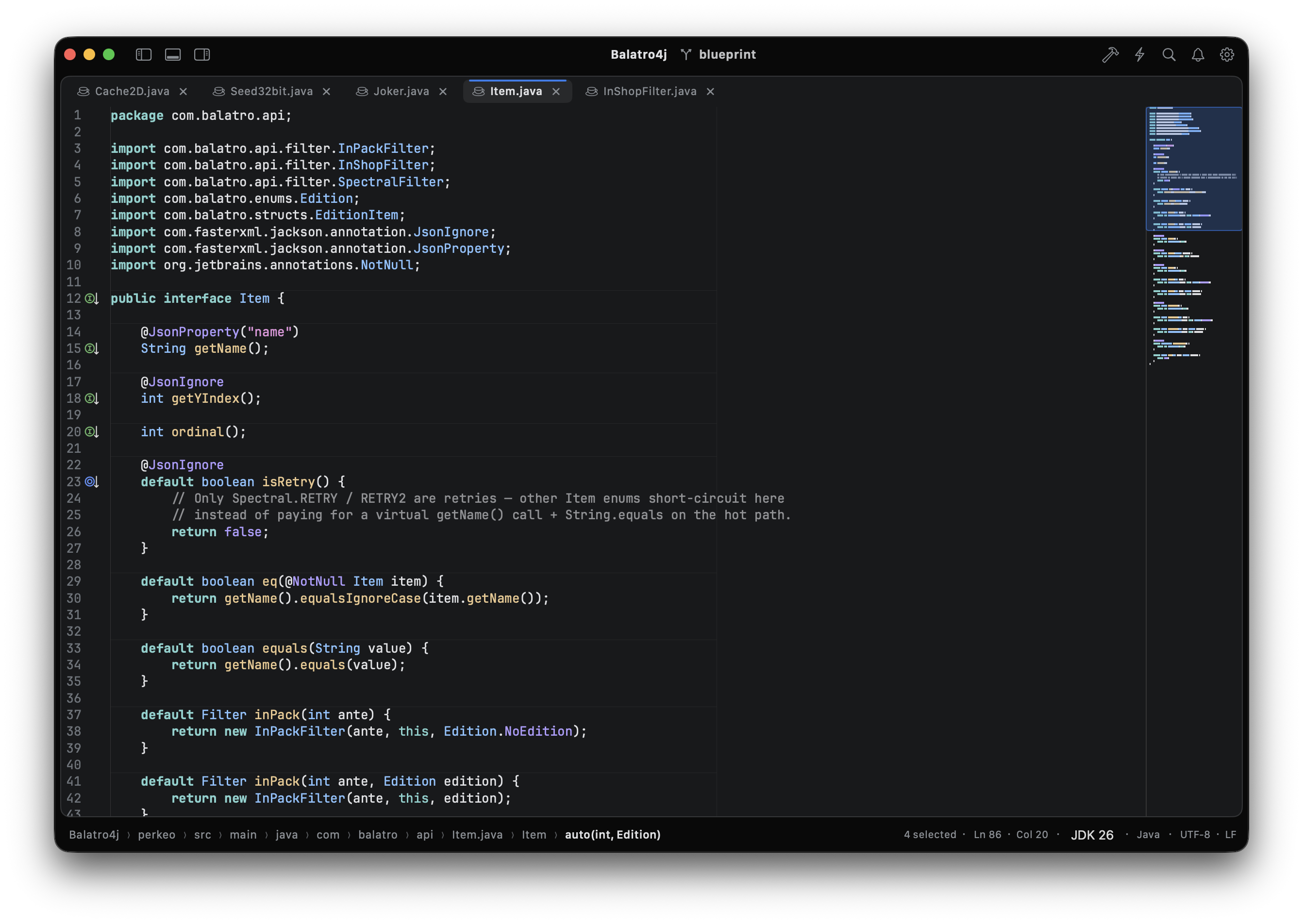
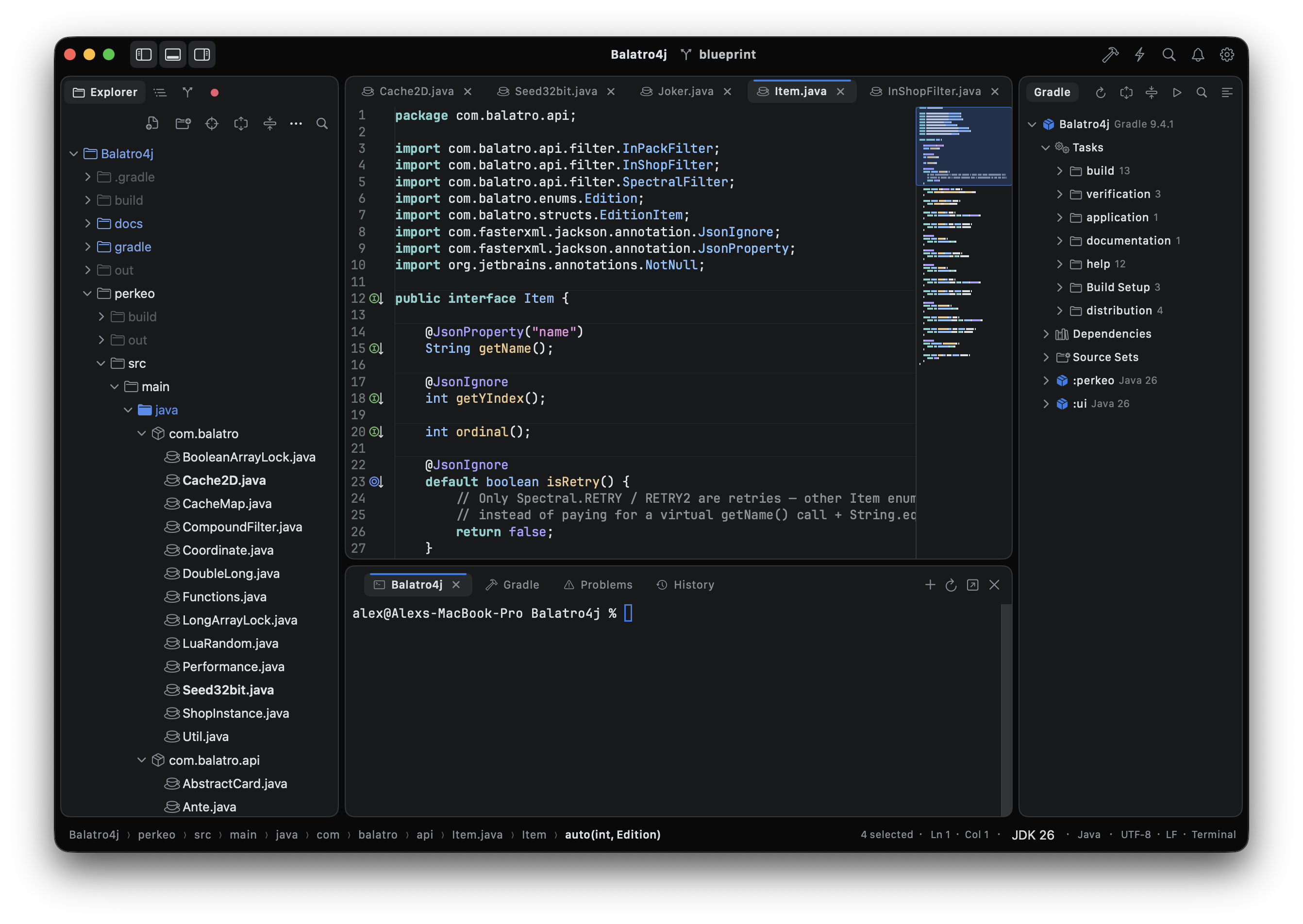
Native JavaIntelligence indexes your JDK, project sources, and Gradle-resolved
JARs. Sync a trusted Gradle build to load modules, dependencies, and source sets, then
build from the editor and see compiler errors in the Problems panel.
- Smart completion with auto-import and parameter hints
- Hover with Javadoc, go to definition, implementation, and super method
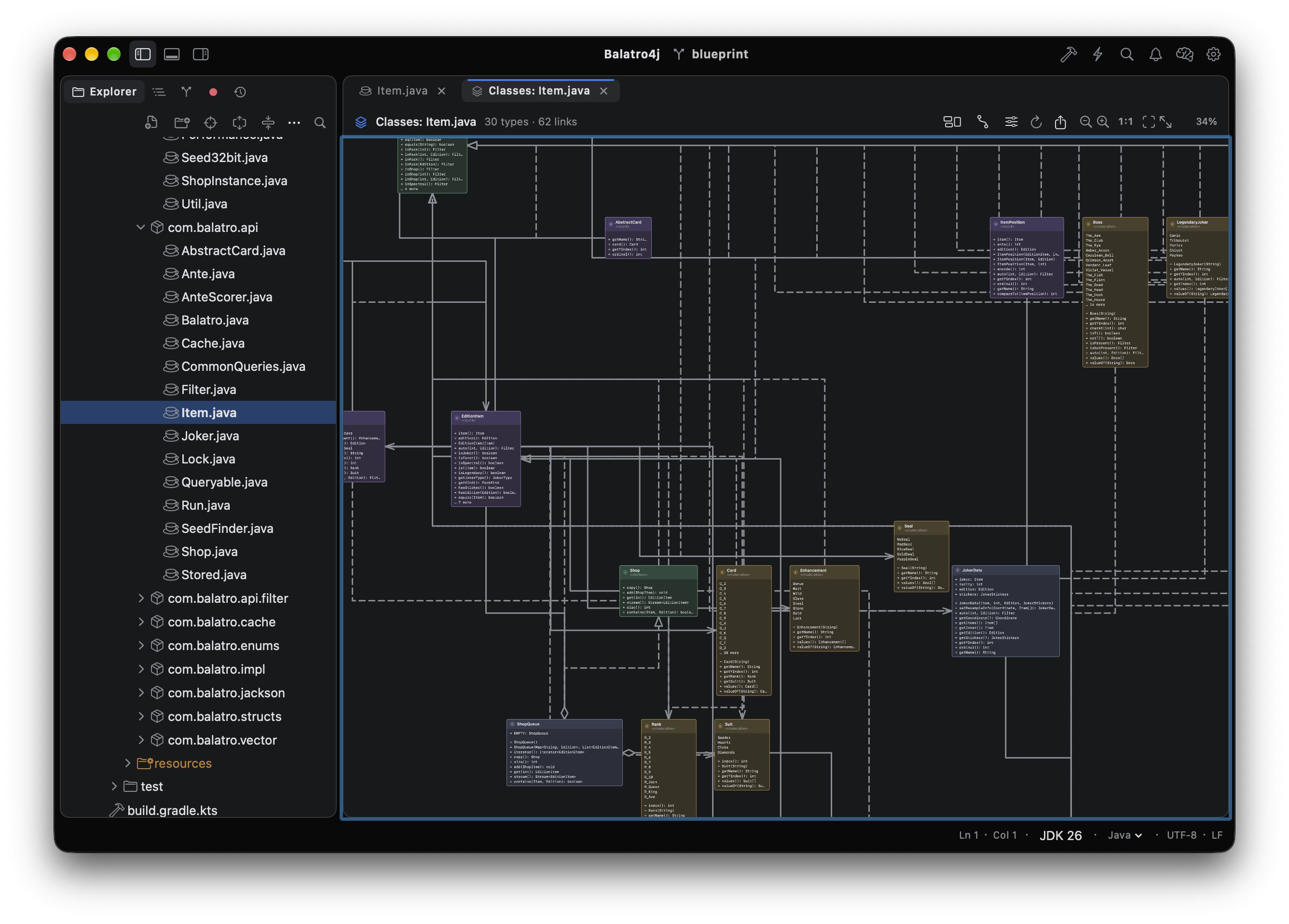
- Find usages, rename, and type hierarchy
javac diagnostics, quick fixes, and optimize imports- Gradle tool window: tasks, dependencies, source sets, reload and run
- Saved run configurations and classpath launch targets
- Completion
- Gradle sync
- Build project
- Run configs
HTTP client
Edit IntelliJ-style .http request files with tree-sitter highlighting. Place
the caret on a request and send it; status, timing, headers, and body appear in the
response panel.
- .http files
- Send at caret
- Response panel
Markdown preview
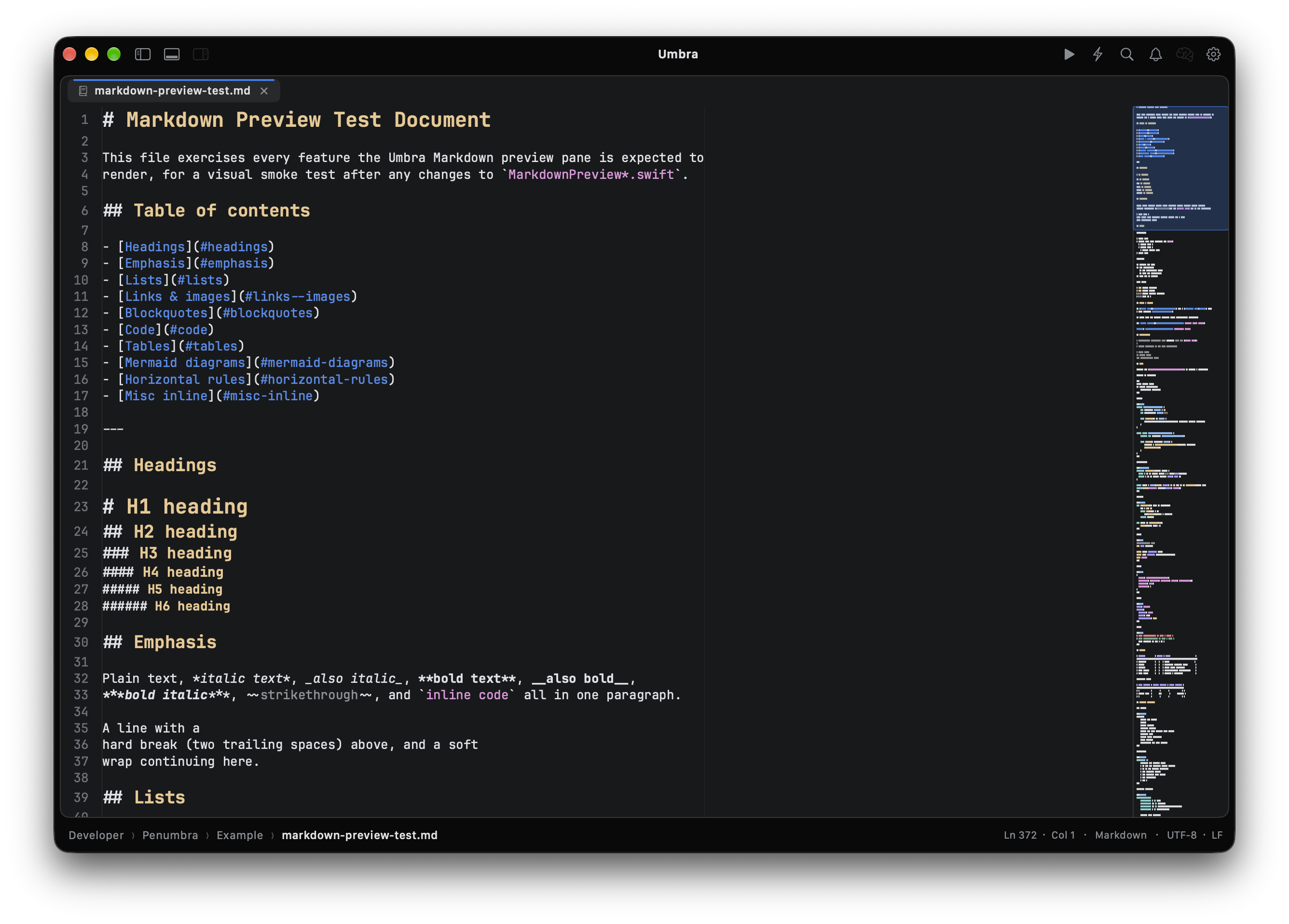
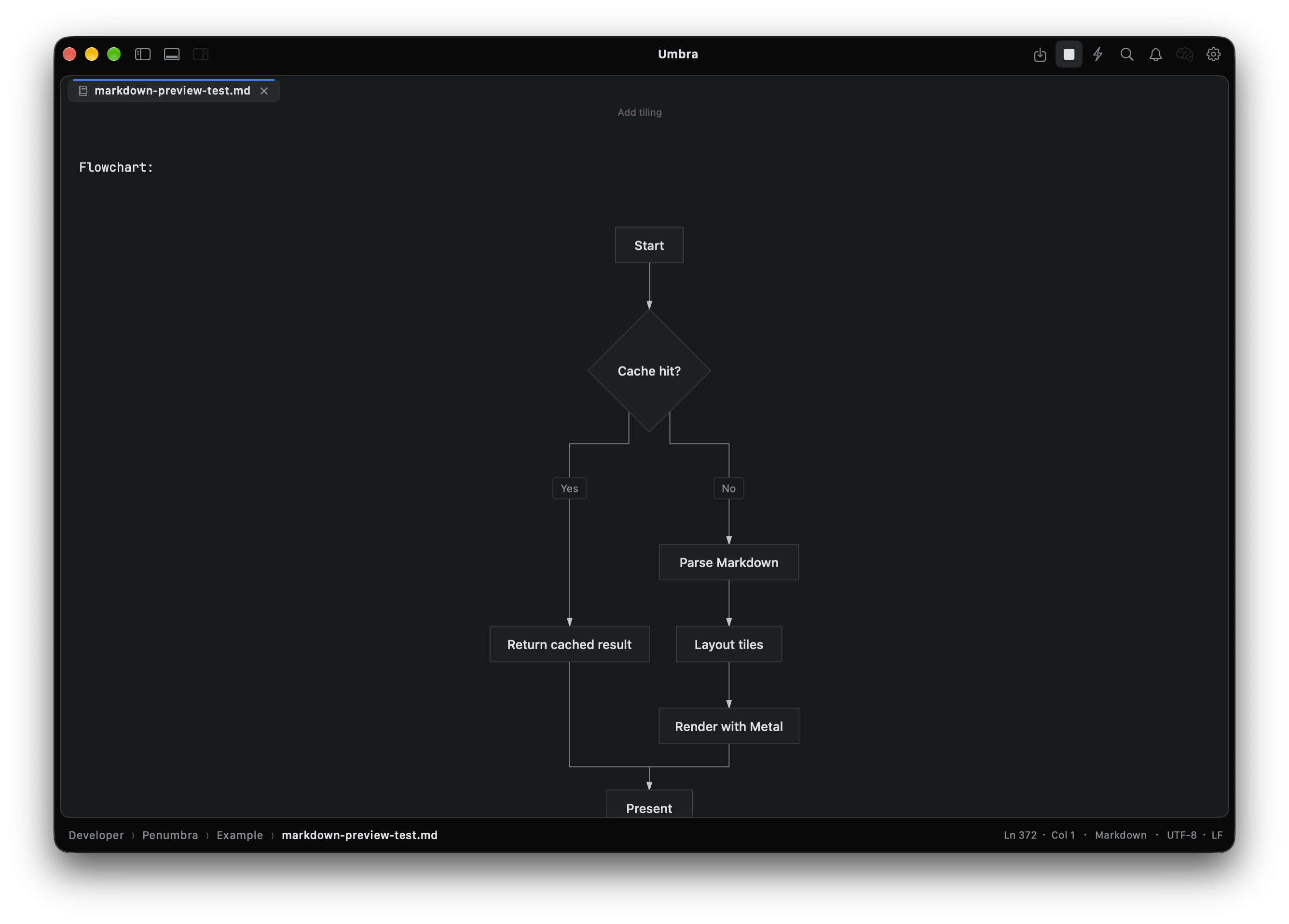
Side-by-side Markdown editing with live preview, fenced code highlighting, blockquotes,
and Mermaid sequence, class, and flow diagrams.
- Live preview
- Mermaid
- Fenced code
Git and source control
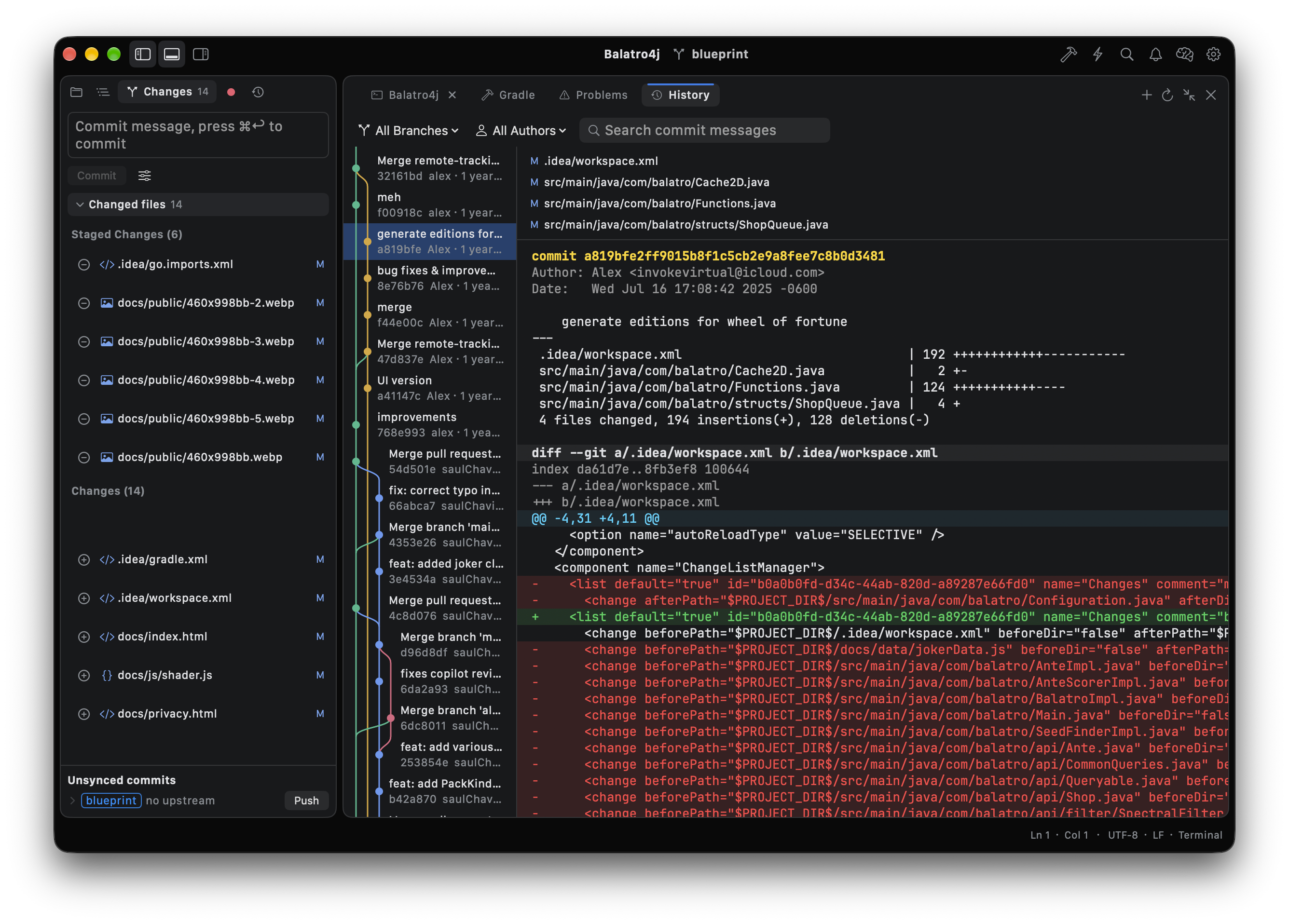
File status colors in the explorer, a source-control panel for stage and commit, inline
diffs, history, branch switch, push, and fast-forward pull.
- Status colors
- Diff
- History
AI coding agent
Built on AgentKit: chat with local or cloud models, run tools against your
project, and review file edits with accept or revert before they land on disk.
- Agent
- File edits
- Local models
Editing and workbench
Tree-sitter highlighting for Swift, JS/TS, Python, JSON, YAML, HTML, and more. Multi-cursor
editing, column selection, find and replace, optional Metal rendering, minimap, and folding.
- Split editors, tab groups, and session restore
- Integrated terminal and Problems panel (⌘⇧M)
- Command palette, go to file, symbol, and line
- Structure view, breadcrumbs, and navigation history
- Multi-cursor
- Splits
- Terminal
- ⌘P palette